
Use Deep Search to find candidates by what they said
Deep Search lets you find candidates by what they said, not just by name. Ask questions in plain English and get ranked results drawn from video transcripts, resumes, application answers, team notes, and uploaded files.
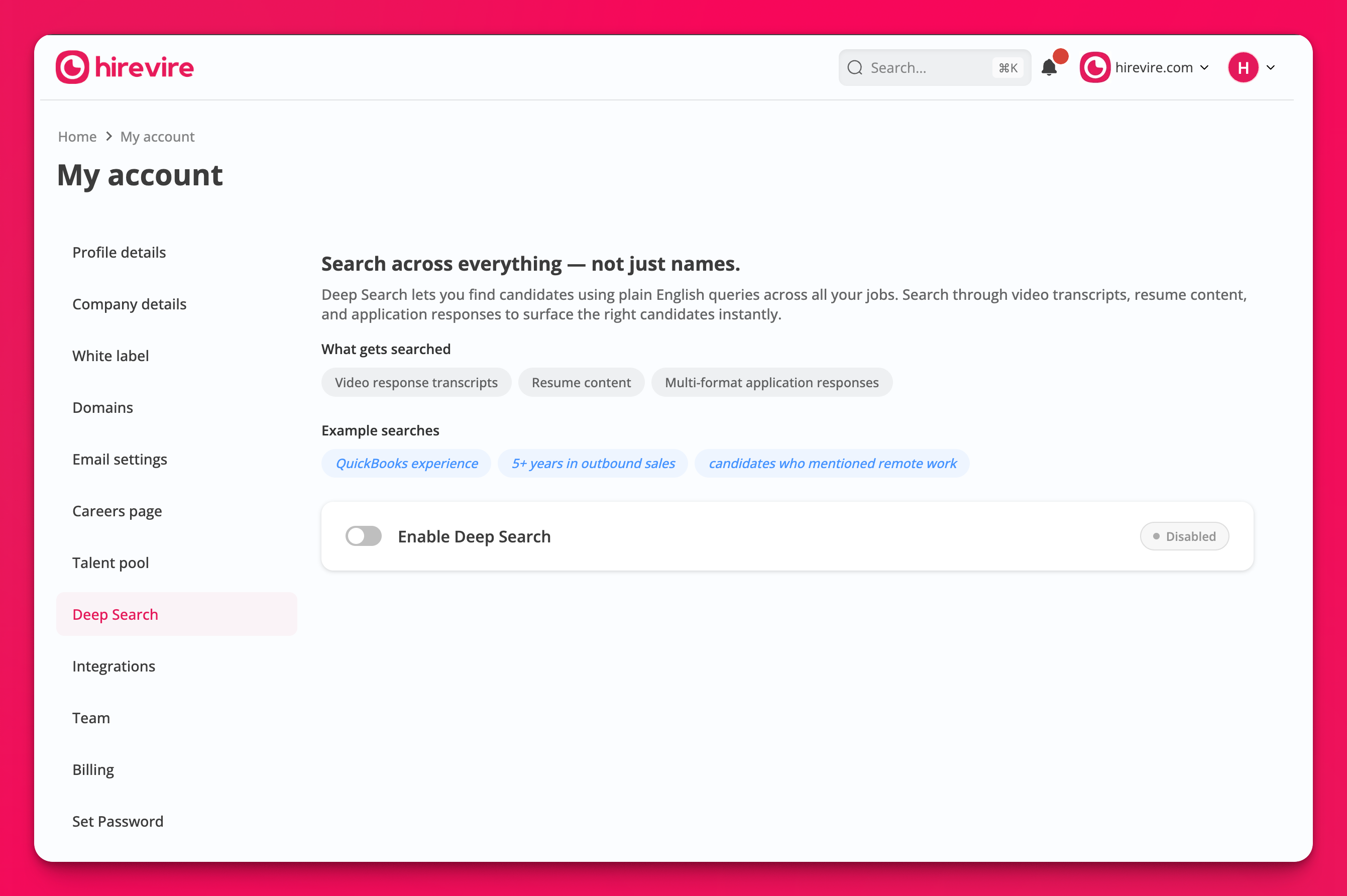
Enable Deep Search
Deep Search is only available on the Agency plan and is off by default.
Open the command palette by pressing Cmd+K on Mac or Ctrl+K on Windows, or click the Search… bar in the top-right header.
Select Deep Search settings from the command list.
On the My account page, toggle Enable Deep Search on.
Run a search
From the dashboard, type a plain-English query about skills, experience, or topics a candidate mentioned. You do not need filters, Boolean operators, or field names.
Press Enter to search.
Review the ranked results. Each result shows the candidate name, where the match was found (for example, a video transcript or resume), and a relevance percentage.
Example queries include “QuickBooks experience,” “5+ years in outbound sales,” and “candidates who mentioned remote work.”
What Deep Search scans
Deep Search searches the following candidate content:
Video response transcripts
Resume content
Multi-format application responses
Team notes
Uploaded files
Deep Search works across all of your jobs. You do not need to specify a job when typing a query.
Disable Deep Search
Open the command palette and select Deep Search settings.
Toggle Enable Deep Search off.